


PDF Reader: PDF Editor, Viewer
3.111.00 Reviews
App Specs
- Version
- 1.3
- Updated On
- License
- Free
- Downloads
- 100,000+
- Developer
- AI Photo Simple
- Categories
- Productivity
- Platform
- Android
Screenshots
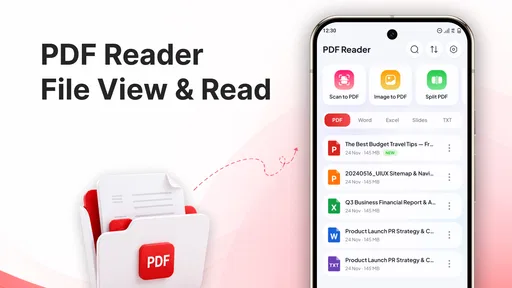
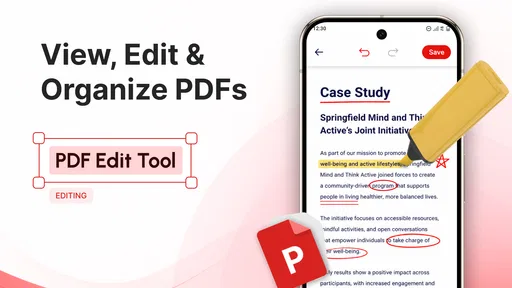
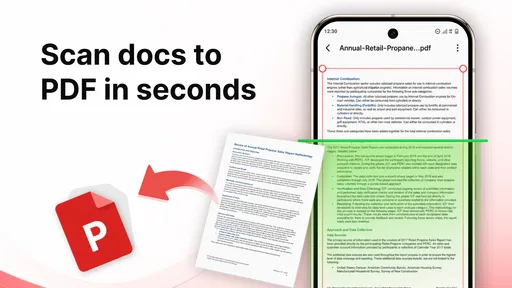
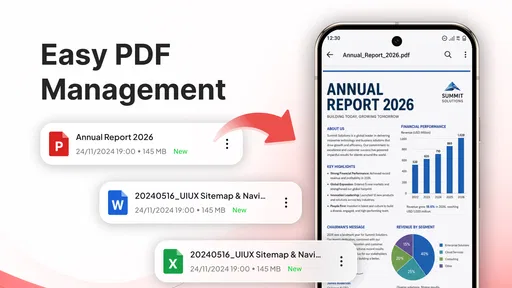
 Analysis by AppCompare
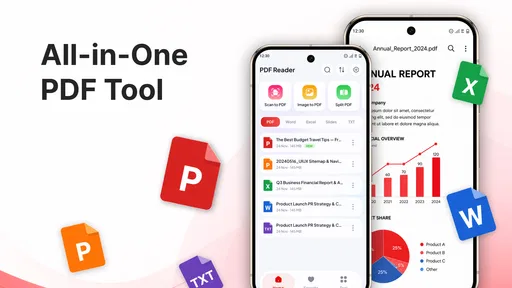
PDF Reader: PDF Editor, Viewer is aimed at people who want to handle everyday documents on a phone rather than open a laptop for every small task. I like that its purpose is practical: reading and editing PDFs, scanning pages, combining files, and converting documents are all part of its stated scope. That makes it more of a pocket document utility than a dedicated reading app. Whether that breadth feels convenient or crowded depends on how often you actually work with PDFs.
Where it fits in a day of small document jobs
A realistic use might start with a paper form you need to keep while away from home. You could scan it, check the resulting pages, and later bring that file together with a related PDF. The attraction is not that every step becomes effortless; it is that you can try to complete the chain on your phone instead of searching for a different tool at each stage. I would still keep the paper original until I had checked that the digital copy is readable.
This kind of workflow suits people who handle PDFs occasionally but in varied ways: a student reviewing a handout one day, someone organizing travel paperwork another, or a household keeping a scanned receipt with other records. It is less compelling if you only read documents, since a basic viewer may already do that job with less clutter. The useful question is not how many actions an app offers, but whether more than one of them solves a recurring problem for you.
How it fits into a mobile document routine
I find it easiest to judge a mobile PDF tool by whether it fits naturally between receiving a document and putting it somewhere useful. This section looks at how a few simple habits can make that routine less messy, especially when a task involves both paper and existing files. From there, the next section considers what to expect when the work becomes more demanding.
Quick access matters more than raw speed
With a PDF tool, “fast” is not just how quickly a page appears. It also means being able to find the right file, make a small change, and get back to the task without juggling several apps. This app’s combination of viewing, editing, scanning, merging, and conversion is useful when those jobs come up sporadically. I would reach for it to check a form, tidy up a document, or bring a paper page into a digital workflow.
I would not assume that having several capabilities in one app makes every operation instant. Large documents, image-heavy scans, or a conversion can take more work than opening a short text PDF. The sensible expectation is convenience for ordinary jobs, not desktop-level responsiveness on every file. If a document takes a moment to process, that is a normal trade-off for doing the work on a phone.
A small workflow tip: decide what the final file needs to be before starting. If you are scanning a receipt to keep with a report, for example, it can be easier to capture the page first and then organize or combine the resulting document, rather than repeatedly switching between scanning and editing. That sequence also makes it easier to notice whether the scan is readable before you build it into a larger file.
Worth Reading Before You Choose

EA SPORTS FC Mobile 26 Is a Bigger Football Game, but It Takes Time

Flipboard Shows What News Apps Must Do Beyond the Feed

Switching to Android Auto Means Rethinking Your Driving Routine

Google Calendar Makes a Crowded Week Easier to Manage

Ludo King Makes the Most of the Minutes Between Plans

Baby Panda World Brings Quick Play to Modern Phones, but Its Game Library Feels Busy
When a simple PDF task becomes a heavier session
The app’s range is most valuable when a task has several stages. Imagine receiving a paper form, needing a digital copy, and later wanting that page alongside another PDF. A reader-only app would cover the last step of looking at the file, while a scan-only tool would solve just the first. Having the relevant actions under one roof can reduce app-hopping, especially for occasional admin at home or on the move.
That same all-in-one approach can feel less comfortable during a long work session. Editing, scanning, and joining documents are different jobs, and a focused specialist may offer a clearer workflow for one of them. For instance, if your main need is marking up lengthy reports, a purpose-built PDF editor may be a better fit than a general utility. If your routine involves repeated, careful scanning, a dedicated scanner app may give you a more deliberate process.
For a smoother session, I would work on a copy when the original matters, and check the resulting file before sharing or deleting anything. That is good practice with mobile document tools in general: conversion or editing can change how a document looks, and a quick page-by-page review can catch a missing page or awkward layout before it becomes someone else’s problem. It is especially worthwhile with forms, invoices, or documents that must remain legible.
Reliability is about checking the result
A document app earns trust through predictable handling, not simply by offering a long feature list. The useful question is whether the file you open remains readable after you make a change or combine it with another one. I would treat PDF Reader: PDF Editor, Viewer as a practical option for routine work, while still checking important output rather than assuming every edit or conversion preserves the layout perfectly.
PDFs can contain mixed page sizes, scans, selectable text, and complex formatting. Those differences can make even familiar tasks behave differently from one file to the next. If a converted file is going to a colleague or an office, open it again and inspect the pages before sending it. For a quick personal reference, that check can be lighter; for a document someone else must complete or print, it is worth being thorough.
I also recommend keeping a clean original until you know the edited version is right. That is a simple recovery habit, not a claim about a particular backup or undo system. If a result is not what you wanted, returning to the untouched source is often easier than trying to reconstruct what changed. This matters most when merging multiple documents or making edits to a file you cannot readily obtain again.
What the rating and audience suggest
The app is free and has an average rating of 3.1 from 361 ratings, alongside 11 written reviews. It has passed 100K installs, which suggests that people do try it, but the modest average is a reason to keep expectations measured rather than to treat it as a polished replacement for every desktop document workflow. Ratings are only a broad signal; your own experience will depend on the files and tasks you bring to it.
AI Photo Simple is the developer, and the app is listed as a productivity tool for everyone. It is free to install, so it is reasonable to try it with a low-stakes document first: open a short PDF, test the action you need, and inspect what it produces. That tells you more about whether it suits your routine than relying on the feature list alone.
Device limits and sensible expectations
The listed minimum operating system is Android 7.0, and the current version is 1.3. Before relying on it for a deadline, I would check that your device meets that requirement and try the app with a representative file. This is particularly useful on an older phone: even when an app can run, opening a large scan or performing several document operations may feel less comfortable than handling a small, text-based PDF.
To keep a phone-based workflow manageable, avoid opening many large documents in succession if the device is already struggling. Close unrelated apps if you notice sluggishness, and let a scan or conversion finish before starting another demanding task. These are general ways to reduce friction on a mobile device, not guarantees that every delay will disappear. For a very large batch of files or intricate edits, a computer remains the more comfortable tool.
Storage is another practical consideration with document work. Scans and combined files can take more room than a simple text document, so it helps to review what you keep after finishing a project. I would save the final version somewhere I can find it again and avoid accumulating duplicate exports. That habit makes the app’s convenience more useful over time, especially if PDFs arrive through several different channels.
Making a trial useful rather than random
When trying a document app, I find it more revealing to test one representative task than to tap through every available tool. Pick a short file similar to the documents you handle, make the kind of change you expect to make, and reopen the result. For a scan, check small print at normal viewing size; for a merge, confirm that the pages appear in the intended order. This gives you a practical sense of whether the workflow is comfortable without putting an important original at risk.
It also helps to think about where the finished file needs to go. A PDF kept for personal reference has different demands from a form that someone else must print or complete. In the second case, inspect page breaks and text placement carefully before sending it. That extra check is a modest time cost, but it is a more reliable way to judge an editing or conversion result than assuming the document looks the same because it opened successfully.
Who will appreciate it—and who may prefer another tool
I can see this being useful for students checking handouts, travelers keeping tickets or forms available, and anyone who occasionally needs to turn paper into a digital file. It is also a sensible candidate for people who want basic PDF tasks close at hand without installing a separate app for every step. The strongest case is convenience across varied, occasional jobs rather than deep specialization in one area.
I would look elsewhere if PDFs are central to your work and you need a highly controlled review process, extensive annotation, or dependable handling of complex layouts. A dedicated editor is often a better choice for sustained markup; a specialist scanner may suit frequent capture; and a desktop application is preferable for large batches or detailed formatting. Those alternatives may involve a more focused interface, while this app’s appeal is having several document actions available in one mobile place.
It may also be a poor match if you only need to read PDFs and already have a viewer that opens them comfortably. In that case, the extra editing and scanning scope may not add enough value to justify changing your routine. Conversely, if you keep encountering small document chores—read this, scan that, combine these pages—the broader toolkit is easier to appreciate.
What to expect from a focused alternative
The usual alternatives split the work: a reader concentrates on opening and navigating files, a scanner focuses on capturing paper, and an editor puts more emphasis on annotations or layout changes. Choosing one of those can be better when a single task dominates your week, because the interface and tools are centered on that job. The trade-off is that a mixed errand may require moving between apps and keeping track of intermediate files.
This app makes more sense when the priority is having several kinds of PDF handling available on a phone, not when you need the deepest controls in any one category. I would compare it with a specialist by testing the task that matters most, rather than judging only by the number of tools shown. If the specialist makes repeated markup clearer or gives you more confidence with complex documents, that advantage can outweigh the convenience of an all-purpose option.
My performance verdict
The best reason to try PDF Reader: PDF Editor, Viewer is its practical range, not a promise of professional-grade speed. It brings common PDF jobs together for people who want to work from a phone, and that can make small errands less fragmented. I would start with a short, nonessential file, test the operation I care about, and review the output before trusting it with an important document.
For light, mixed use, that is a reasonable proposition from a free app with a broad everyday purpose. For constant or demanding document work, I would compare it with a specialist editor or use a computer when accuracy and control matter more than convenience. The release date is Jul 24, 2026, so I would also consider how recently it arrived when judging its track record: its current version is 1.3, and the rating offers a cautious rather than glowing signal. My recommendation is therefore straightforward: try it for routine PDF tasks, but keep a copy of important originals and verify anything you plan to share.
Pros
- Quickly opens PDFs
- making it handy for checking documents on the go.
- Includes search tools for finding specific words or phrases in a file.
- Page thumbnails make it easier to jump to a particular section.
- Supports zooming for comfortable reading of small text.
- Useful for keeping frequently accessed PDF files organized.
Cons
- Editing options may be limited compared with dedicated desktop PDF software.
- Large or image-heavy files can take longer to load on older devices.
- Some features may require a paid upgrade or subscription.
- Small on-screen controls can be awkward to use on a phone.
- PDF formatting may not display perfectly for every document.
FAQs for PDF Reader: PDF Editor, Viewer
What can PDF Reader: PDF Editor, Viewer do?
PDF Reader: PDF Editor, Viewer is designed to help you open and read PDF documents on a mobile device, with editing and document-management tools that may include annotation, highlighting, signing, or page handling. Available features can vary by app version and device, so check the feature list in the store before downloading if you need a particular tool. It is also worth confirming whether advanced functions require a subscription or in-app purchase.
Can I edit and annotate PDFs with this app?
The app’s name indicates support for PDF editing as well as viewing, but the exact editing options depend on the current release. Look for details about adding notes, highlighting text, filling forms, signing documents, or changing pages in the app’s listing. Some readers allow comments and markup without changing the original text, while more substantial edits may be restricted to paid features. Keep a backup of important files before making changes.
Does PDF Reader: PDF Editor, Viewer work offline?
You can generally expect a PDF reader to open files already saved on your device without an internet connection, which is useful for travel or reviewing documents away from Wi-Fi. However, downloading files from cloud storage, syncing across devices, or using online conversion and sharing services may require internet access. Offline availability can also depend on where a document is stored, so save important PDFs locally and test access before you need them.
Is PDF Reader: PDF Editor, Viewer free to download and use?
The app may be available to download at no cost, but that does not necessarily mean every feature is free. PDF tools commonly offer optional subscriptions, one-time purchases, advertising, or limits on particular editing functions. Review the store page for current pricing and in-app purchase information, and check the payment terms before starting a trial. If you only need basic reading, confirm that the free version covers your needs.
Is it safe to open or share sensitive documents with the app?
Before using any PDF app for financial, medical, or work documents, review its privacy information and the permissions it requests. Avoid granting access that is not needed for the features you use, and be cautious when sharing files through external services. The app’s privacy practices can change, and handling may depend on whether a feature works locally or online. For highly confidential documents, follow your organization’s security guidance and use trusted storage.


